Vue lecture

How to Take Screenshots in Linux Mint [Beginner's Tip]

Linux Mint is known for being simple and beginner friendly. It works out of the box with most essential features ready to use, so you don’t have to spend time setting things up. One such basic task is taking screenshots, and Mint makes it very easy even if you are completely new to Linux.

In this beginner's guide, we will look at the built-in screenshot tool in Linux Mint and the keyboard shortcuts you can use right away.

📋
This article is part of the Linux Mint beginner's tutorial series.

The GUI screenshot tool that you don't want to miss

Linux Mint provides a simple graphical interface for those who prefer a GUI solution for taking screenshots.

Beyond the basic options, the tool also includes a few useful features. Let’s take a look at them next.

First, open the Screenshot tool by searching for it in the start menu.
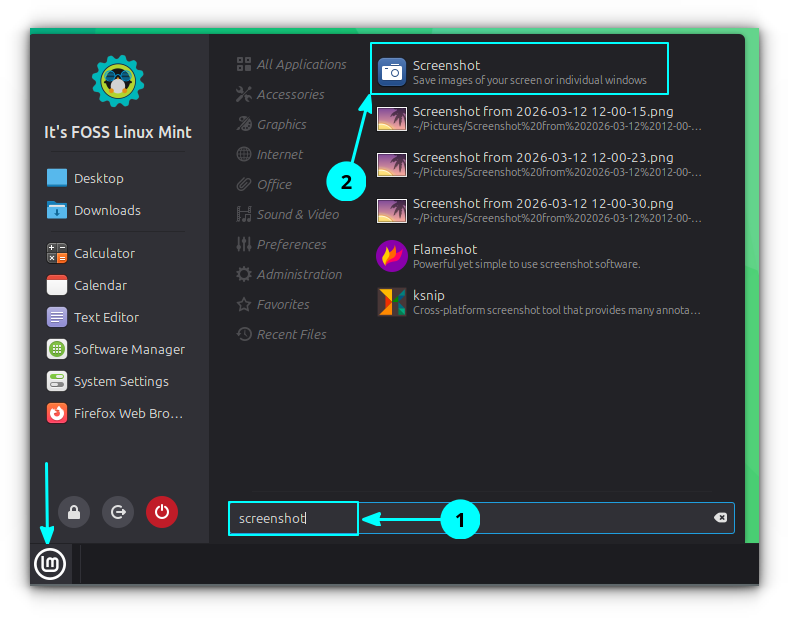
In the Linux Mint Start menu, search for Screenshot and open the Screenshot tool.
Open Screenshot Tool
💡
You can pin the Screenshot app to the taskbar for quick access.

The interface is simple and easy to understand. There are three main options:

  • Capture Screen: Takes a screenshot of the entire screen
  • Capture Window: Captures the active window
  • Capture Selection: Lets you select a specific area using left-click and drag to capture.
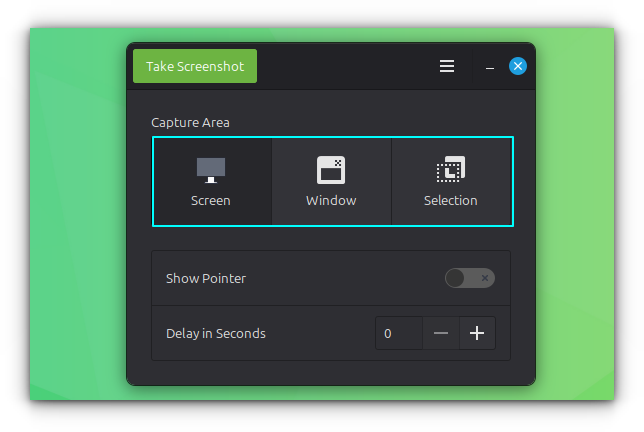
Linux Mint GNOME Screenshot Utility Interface.
Screenshot Tool Interface

After choosing the method, click the Take Screenshot button at the top left of the window.

Show mouse cursor in screenshot

In the Screenshot tool, you will find an option called Show Pointer. Enable this if you want the mouse pointer to be visible in your screenshots.
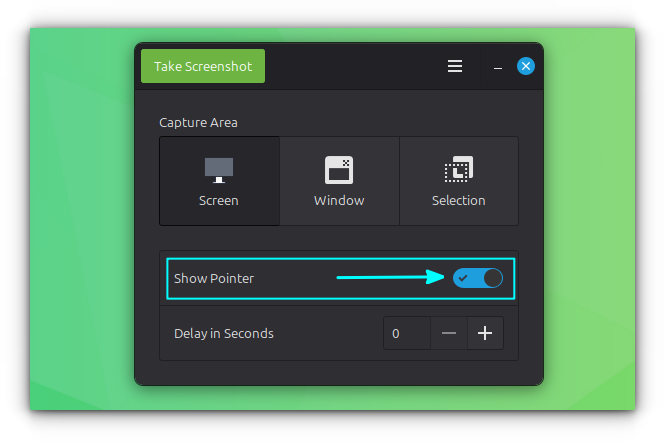
Show Pointer option in GNOME Screenshot Utility in Linux Mint.
Show Pointer

Take screenshot with a delay

You can also set a small delay before taking a screenshot.

🚧
This does not apply to keyboard shortcuts by default.

In the Screenshot tool, enter a value in seconds under the Delay in Seconds option.
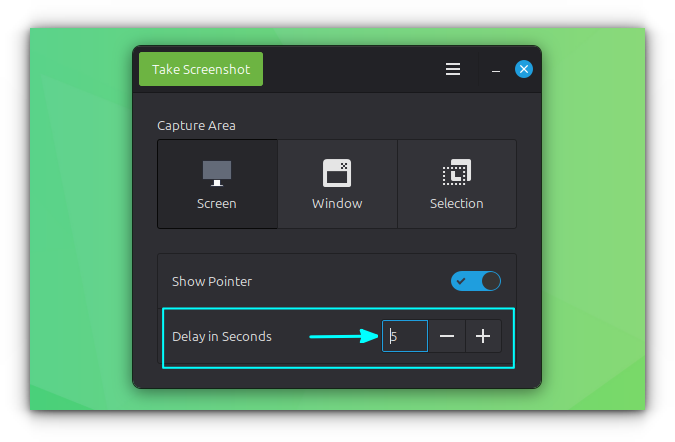
Add a delay to taking screenshot in Linux Mint.
Add a Delay to Screenshot

Once set, the tool will wait for the specified time before capturing the screenshot when using the GUI. For example, if you set it to 5 seconds, the screenshot will be taken after a 5 second delay.

💡
One common use case for delay is capturing the mouse cursor in window or area screenshots. Without a delay, the screenshot is taken instantly, so you do not get time to move the cursor from the Screenshot tool to the target application or position it properly.

Using keyboard shortcuts

If you prefer not to open a GUI app every time you take a screenshot, that is not a problem. Linux Mint provides keyboard shortcuts that let you quickly capture the screen in different ways.

Take the screenshot of entire screen

You can press the PrtScr key on your keyboard to capture the entire screen.

After taking the screenshot, you will be prompted to either save it with a name or copy it to the clipboard. This works well for basic use.

However, this can feel limited if you only want to capture a small part of the screen. The good news is that Linux Mint also provides an easy way to do that.

Take the screenshot of an area

To take the screenshot of a specific area, use the Shift + PrtScr shortcut.

Your screen will dim slightly and the cursor will change to a plus sign. Click, hold, and drag to select the area you want to capture.

Once you release the mouse button, you can choose to copy the screenshot or save it.

🚧
Keep in mind that you cannot adjust the selection after releasing the click, so make sure to select the area carefully.

Take screenshot of a window

Sometimes, you may want to capture only the currently active window. While you can do this using the area selection method, using a shortcut is much more convenient.

Press Alt + PrtScr to take a screenshot of the active window.

There are a few things to keep in mind. If a menu is open inside the window, like a top menu or a right-click context menu, this shortcut may not work.

🚧
In my case, I was not able to use any of the screenshot shortcuts if the window in focus has a menu opened. In this case, you need to set a delay to take the screenshot, which we will see in a later section.

Also, if a dialog box is open, the tool will capture whichever window is active at that moment, whether it is the main window or the dialog.

Record the screen

Many people do not realize that Linux Mint also includes a built-in screen recorder. It is not visible in the menus, so it is easy to miss.

Press Shift + Ctrl + Alt + R to start recording your screen. Use the same key when a recording is active to stop recording.

This is a basic tool, so do not expect features like those in dedicated applications such as OBS Studio or SimpleScreenRecorder. It simply records your entire screen.

When you stop the recording, the video file is saved in the Videos folder inside your Home directory.

Custom Shortcuts

In the previous section, we saw that the GUI tool offers options like delay and showing the mouse pointer, which are not available with the default keyboard shortcuts.

However, this does not mean you are limited. In Linux Mint, you can create custom shortcuts to include these actions as well.

The screenshot options

Before setting up custom screenshot shortcuts, it helps to understand the available options. Linux Mint uses the GNOME Screenshot tool for both the GUI and keyboard based screenshots.

GNOME Screenshot provides several useful options, along with many more that you can explore in its man page.

  • gnome-screenshot -w: Take the screenshot of current active window.
  • gnome-screenshot -a: Take the screenshot of a select region by click and drag.
  • gnome-screenshot -d 5: Add a 5 second delay before taking a screenshot of the entire screen.
  • gnome-screenshot -d 5 -p: Apply a 5 second delay and include pointer in the screenshot.
  • gnome-screenshot -d 5 -a, gnome-screenshot -d 5 -w: Take screenshot of select area/window respectively with a 5 second delay.

Setting custom screenshot shortcuts

Search for and open Keyboard from the start menu.
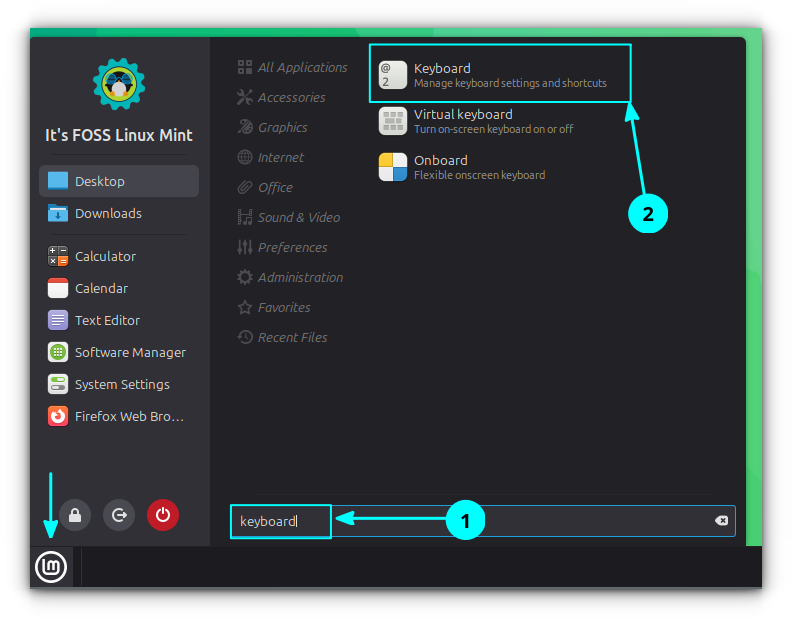
Search for keyboard in Start Menu and open the Keyboard application from the list.
Open Keyboard Application

Go to the Shortcuts tab and then select Custom Shortcuts. Click on the Add custom shortcut button.
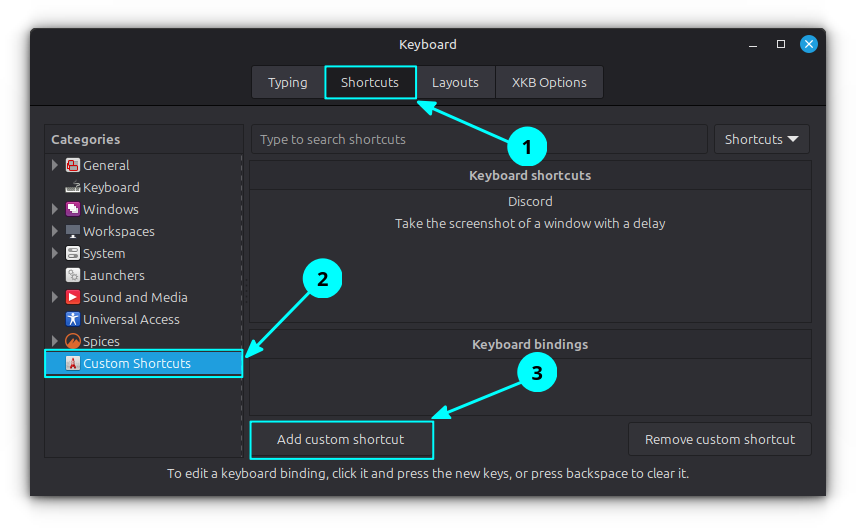
In the shortcuts tab of Keyboard application, go to Custom Shortcut and select the Add custom shortcut button.
Add Custom Shortcut

Now, enter a name for the shortcut. For example, you can use "Take screenshot of an area with a delay" in the Name field.
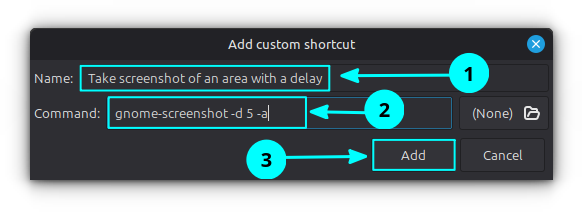
Add a name for the shortcut in the name field and add a command that you want to execute when the key is pressed.
Enter name and command

In the command field, enter the required command. For example, use gnome-screenshot -d 5 -a, and then click the Add button.

The command will now be listed. To assign a shortcut, select it under Keyboard shortcuts and click on the Unassigned option in the Keyboard bindings section.

0:00
/0:13

Add the keybinding to the custom command.

You will be prompted to press a key combination. Press the shortcut you want to use.

You can repeat the same steps to create and assign shortcuts for other commands based on your needs.

Other screenshot tools

Sometimes, basic screenshots are not enough. You may want to annotate an image or add borders and other adjustments.

These are image editing features, and they are not available in the default Screenshot tool in Linux Mint.

For such needs, you can use third party screenshot tools that offer more control and customization.

We have a separate article that covers screenshot tools you can use in more detail. You can refer to it to find options that suit different needs and use cases.

As a quick note, Flameshot and Ksnip are two good screenshot tools you can use for editing and customization. You can also use Gradia that also provides basic editing.

Did you find it useful? Feel free to share your thoughts in the comments.

  •  

Foot: The Wayland Terminal Most Linux Users Don’t Know About

There is simply no shortage of terminals for Linux. And yet we keep on seeing new terminals coming up almost every year.

The regular terminal works but then there are terminals like Kitty and Ghostty that provide modern features and customization.

In the same regard, foot is also a good terminal worth having a look. It is not a new project. It has been an active player for sevaeral years and yet not many Linux user have heard of it.

Foot terminal

Foot is a fast and lightweight Wayland-native terminal emulator. Older terminal emulators were designed around X11 and later gained Wayland support, while Foot is a terminal emulator designed specifically for Wayland from the beginning. Modern GPU terminals like Kitty or Alacritty instead support both X11 and Wayland as first-class backends.

Let me show you some of the features of Foot terminal that provide significant value to the user.

Sixel image support

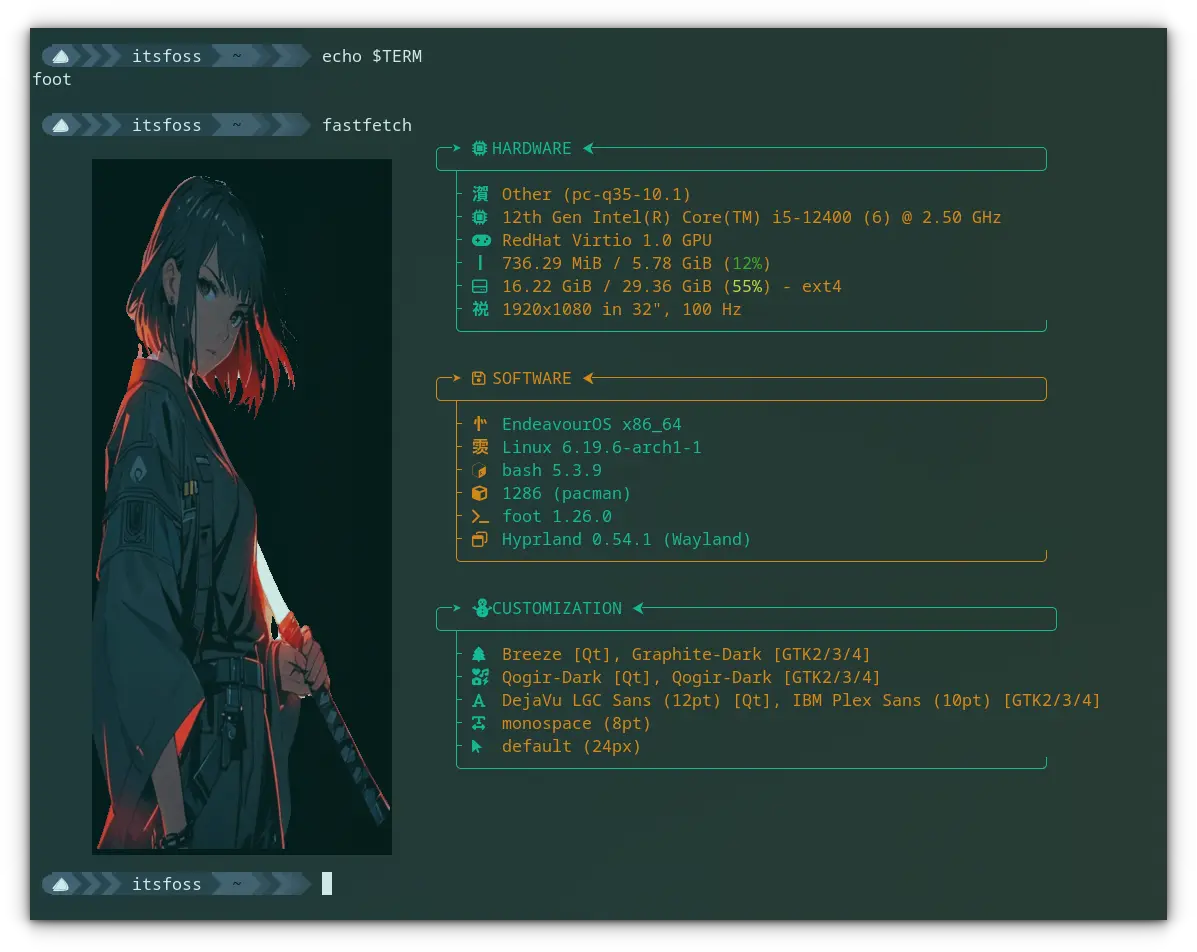
With the Sixel image support, terminals can display actual images. Foot supports the sixel protocol and thus you can view real images in it without extra effort.

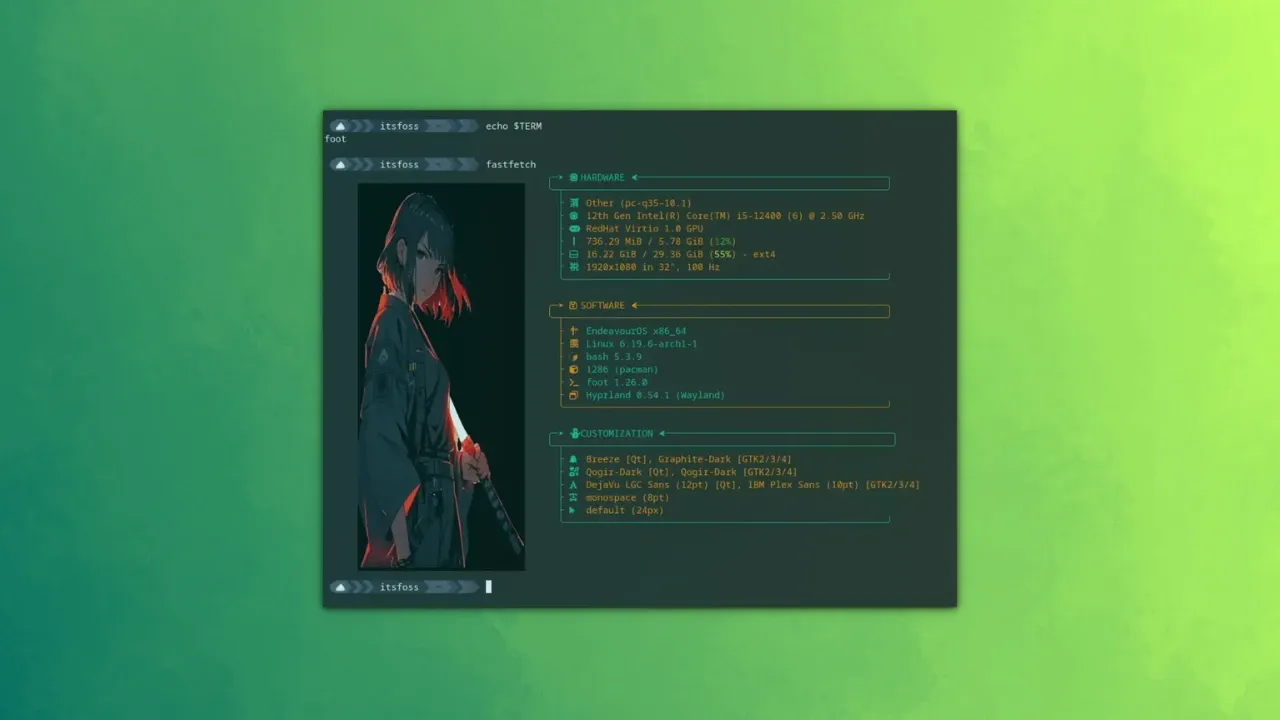
What's the point? Well, if you are using terminal tools like fastfetch, you can display real images in terminal instead of the usual ASCII renderings. Look at the image below for example:

Foot Terminal with Fastfetch logo displayed.
Foot Terminal Image Support

Also, terminal file managers like Yazi can show image file previews in a preview pane with the image support.

Scrollback search

Imagine you executed a command and it produced a long output. Normally, you cannot search in the command output displayed on the screen.

Foot supports scrollback search. If you have a huge scrollback of thousands of lines, the ability to search through it is a game changer.

0:00
/0:32

Using the Scrollback search feature.

Press CTRL+SHIFT+R to search a scrollback history. You will get a search prompt at the bottom-right of your screen. Enter search string and you can see that results are live updating.

Keyboard-driven URL detection

Some terminal output may contain URLs. For example, I use hyperlinks in markdown notes and preview them using Glow. In this case, I can press the shortcut CTRL+SHIFT+O to highlight links.

When you press the shortcut, you can see that small alphabetic characters are attached near the links. Press the associated character, and that link is opened in your default web browser.

🗒️
I use Qutebrowser as my main browser. It also follows a similar hyperlink navigation, so everything feels cohesive.

You can press the ESC key to quit the URL mode.

A clip showing opening links using URL mode in Foot terminal emulator.

Server-daemon mode

In server-daemon mode, one process hosts multiple windows. It offers reduced memory footprint, reduced startup time, etc.

But do remember, if the main process crashes, all windows go down with it.

To get server mode in Foot, start the foot server along with desktop login. That is, you need to auto-start the command:

foot --server

We have a dedicated guide on how to auto-start applications and commands at desktop login.

Once done, instead of opening new terminal instances using foot, use footclient.

💡
You can assign the terminal opening shortcut to the command footclient.

Fallback font configuration

The user can configure which fallback font to use. If you use a lot of glyphs in the terminal, you can configure the fallback fonts as per need.

Also, it allows you to set one fallback font with a different style and size than another one.

Installing foot terminal

💡
Foot should be available in the official repositories of most distributions. Please check your distro's package manager.

On Ubuntu and Debian-based distros, please use this command:

sudo apt install foot

On Fedora-based distros, use:

sudo dnf install foot

On Arch-based distros, use the pacman command:

sudo pacman -Syu foot

Basic foot configuration

Foot expects a configuration file at ~/.config/foot/foot.ini. When you install Foot, a default configuration will be added at /etc/xdg/foot/foot.ini.

So, you don't need to start from scratch but you still need to do a few things to get started with foot. First, create a config directory for Foot:

mkdir -p ~/.config/foot

Now, copy this default configuration to your local config location and start editing.

cp /etc/xdg/foot/foot.ini ~/.config/foot/
nano ~/.config/foot/foot.ini

How to know about modules

You cannot write a configuration if you don't know what modules are available for you to customize. Don't worry! Foot provides a concise description of available modules in a separate man page. Open a terminal and use the command:

man foot.ini

Read the page once before starting to configure.

Options that you may require

In this section, we will see some of the useful configuration keys.

Change the Shell

The shell option sets a different shell to the Foot Terminal without altering the default system shell.

The syntax is shell = /usr/bin/zsh. You can use the which command to find the path to the shell to use.

Change Font

Changing font is one of the most important parts of any customization. And Foot provides the font- variables for the purpose:

  • font = IBM Plex Mono:size=14: Sets the font to IBM Plex Mono and sets the size to 14.
  • font = Ubuntu Mono:wieght=bold:size=14: Sets the bold font to Ubuntu Mono and sets the size to 14.
  • font = JetBrains Mono:weight=bold:slant:italic:size=14: set the bold-italic font to JetBrains Mono and size set to 14.

Include another config

Splitting up the configuration will enable you to maintain and modify it easily in a later stage. And this is the best approach for theme customization.

For example, let's see how you can set a Catppuccin Mocha theme to the foot terminal.

Visit the Catppuccin Foot theme GitHub repository. Go to the themes/catppuccin-mocha.ini file and download it using the download button at the top of the page, as shown in the screenshot below.

Now, create a directory with the command:

mkdir -p ~/.config/foot/themes/

Paste the downloaded catppuccin-mocha.ini file inside this directory. Assuming you have downloaded the file to the ~/Downloads directory, use the command:

cp ~/Downloads/catppuccin-mocha.ini ~/.config/foot/themes/

Now, we need a little troubleshooting. With the latest update, Foot color schemes need a [colors-dark] module, and the Catppuccin comes with [colors]. Just open the file:

nano ~/.config/foot/themes/catppuccin-mocha.ini

And edit the [colors] to [colors-dark] and save it.

One more step. Open the foot.ini config file in your favorite editor:

nano ~/.config/foot/foot.ini

Add the below line to the top of the file:

include=~/.config/foot/themes/catppuccin-mocha.ini

Also, comment out all the blocks, including and under [colors], [colors-dark] inside it the foot.init file.

That's it. Reopen Foot Terminal and enjoy the new themes.

I let you try it and discover more of its features.

  •